
How to Write Documents with Markdown
Markdown
Markdown is a lightweight markup language created by John Gruber in 2004. It allows people to write documents in an easy-to-read and easy-to-write plain text format.
With a suitable converter, documents written in Markdown can be exported to HTML, Word, images, PDF, EPUB, and other formats.
Markdown documents usually use the extensions .md or .markdown.
Markdown Applications
Markdown can be used to write e-books with tools such as GitBook.
Many websites use Markdown for documentation or forum posts, including GitHub, Jianshu, Reddit, Diaspora, Stack Exchange, OpenStreetMap, and SourceForge.
Markdown Basics
Headings
Markdown headings have two formats.
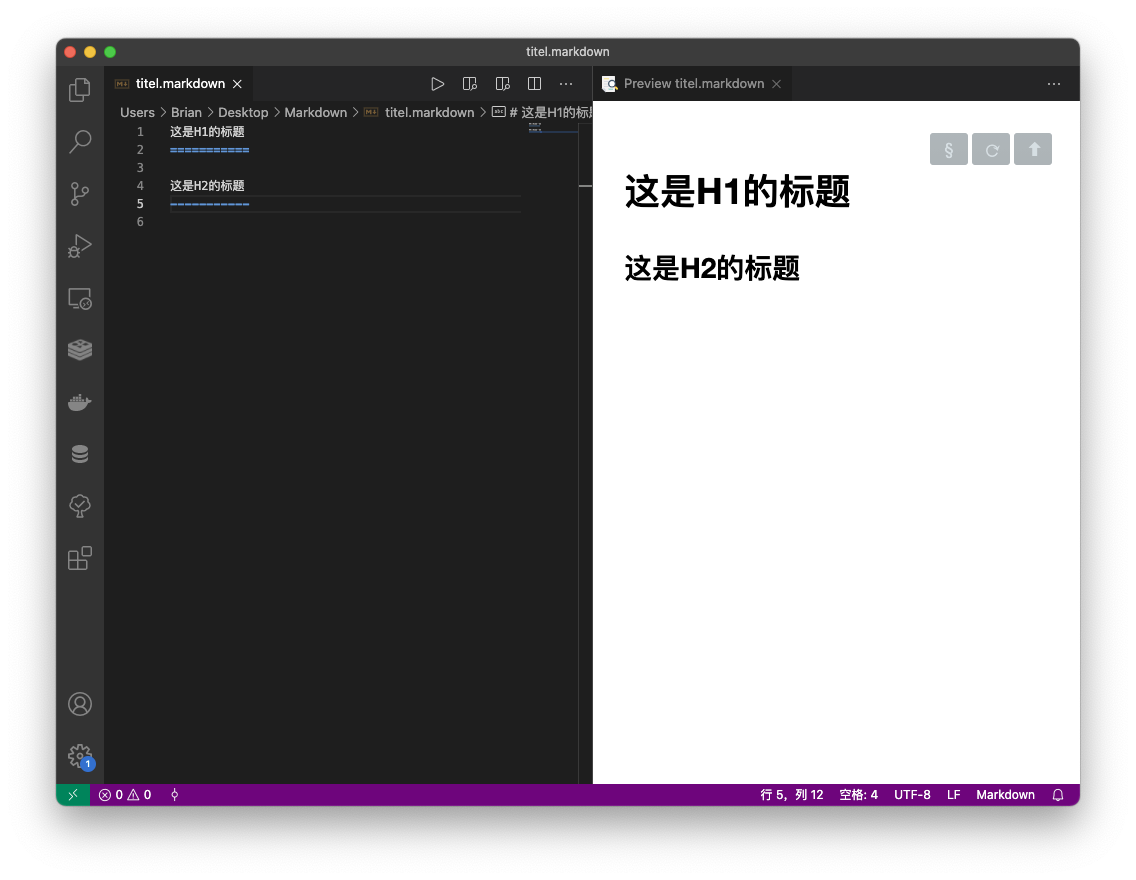
1. Use = and - to mark first-level and second-level headings
This is an H1 heading
===========

This is an H2 heading
-----------
2. Use # as a marker
Use # to represent headings of levels 1-6, where a level-one heading corresponds to one # and a level-two heading corresponds to two # and so on.
# Level 1 heading

## Level 2 heading

### Level 3 heading

#### Level 4 heading

##### Level 5 heading

###### Level 6 heading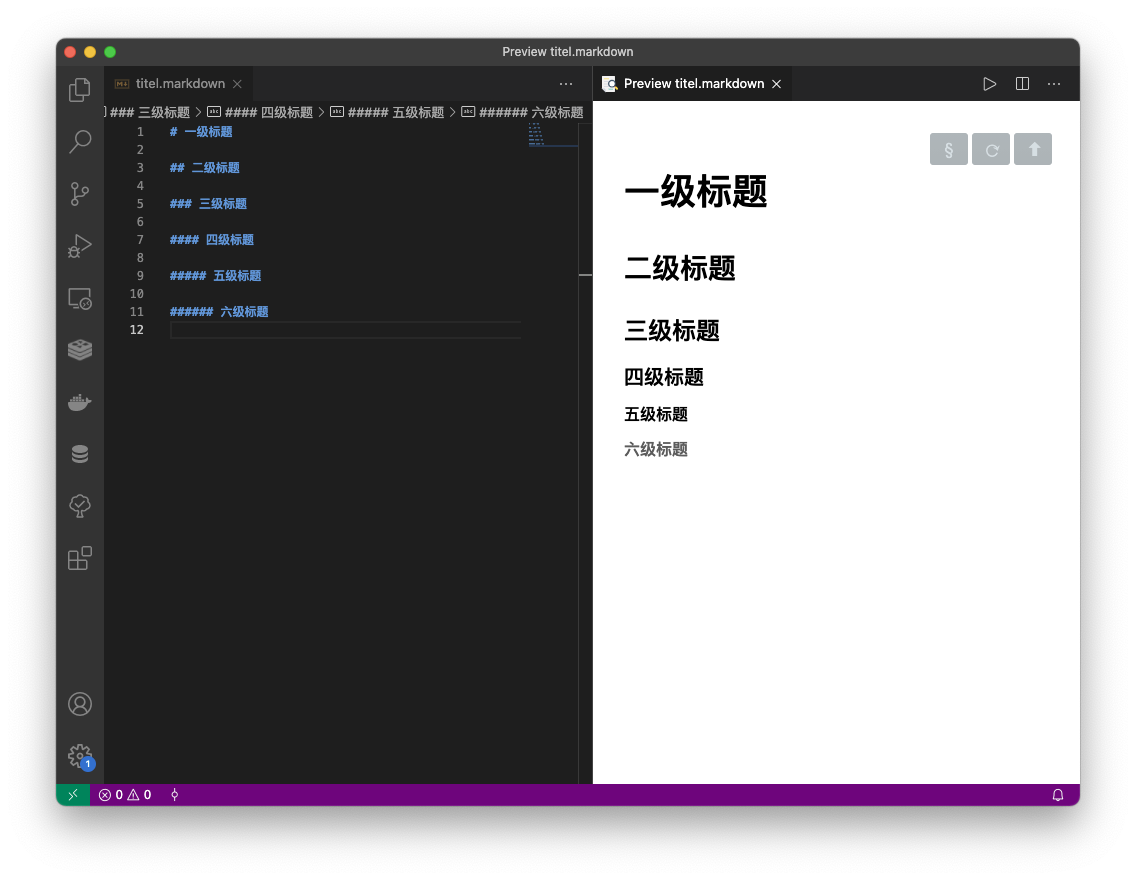
Paragraphs
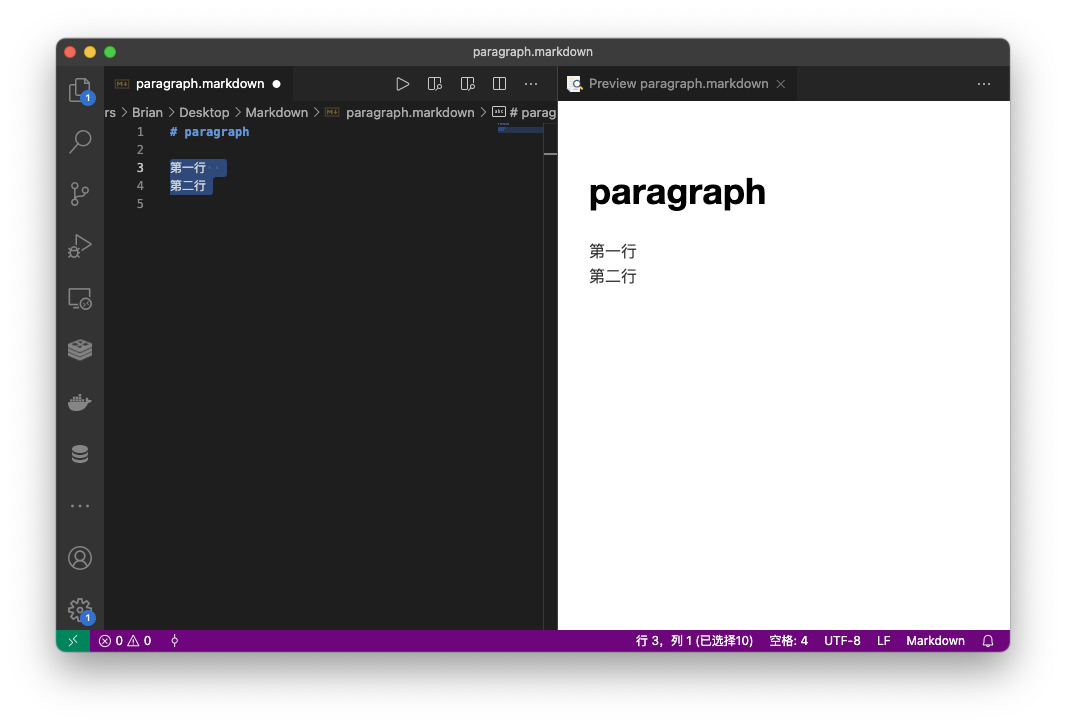
Markdown paragraphs need no special formatting; just write your text. To insert a line break within a paragraph, end the line with two or more spaces and press Enter.
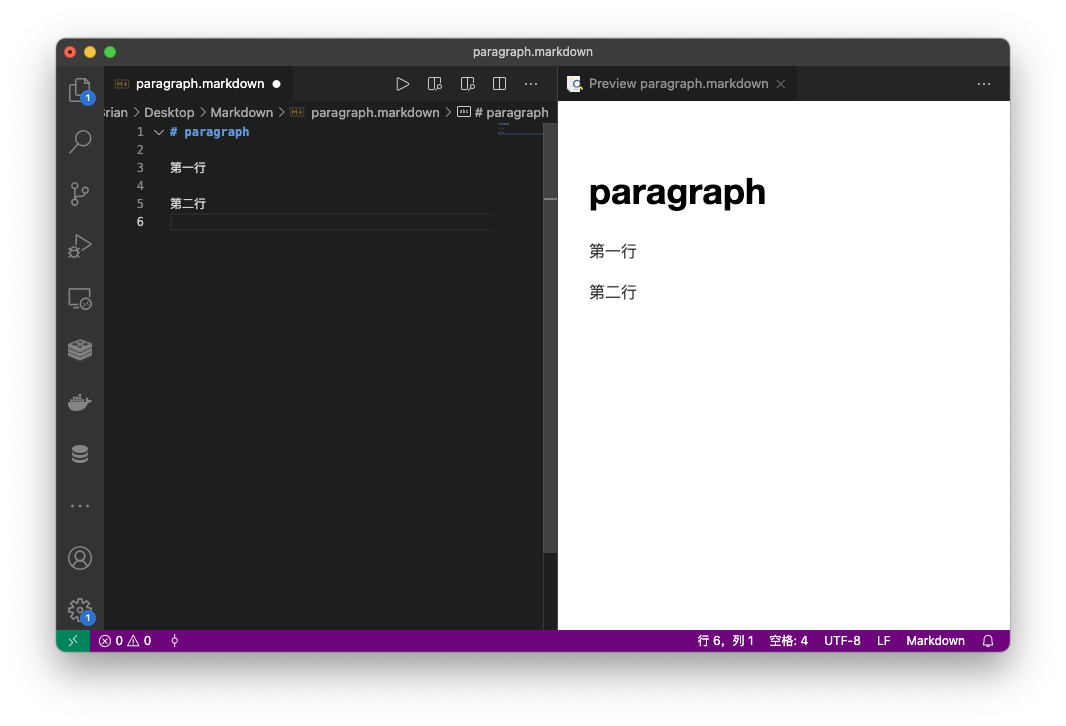
A blank line separates two paragraphs.
Italics and Bold
Markdown uses *text* or _text_ for italic text, and **text** or __text__ for bold text.
Usage | Result |
|---|---|
*italic text* | italic text |
_italic text_ | italic text |
**bold text** | bold text |
__bold text__ | bold text |
***bold italic text*** | bold italic text |
___bold italic text___ | bold italic text |
Lists
Markdown supports unordered and ordered lists.
Unordered List
Unordered lists use an asterisk * or a plus + or a minus - as a list marker. Add a space after the marker, then the list item text:
* First item
* Second item
* Third item

+ First item
+ Second item
+ Third item

- First item
- Second item
- Third item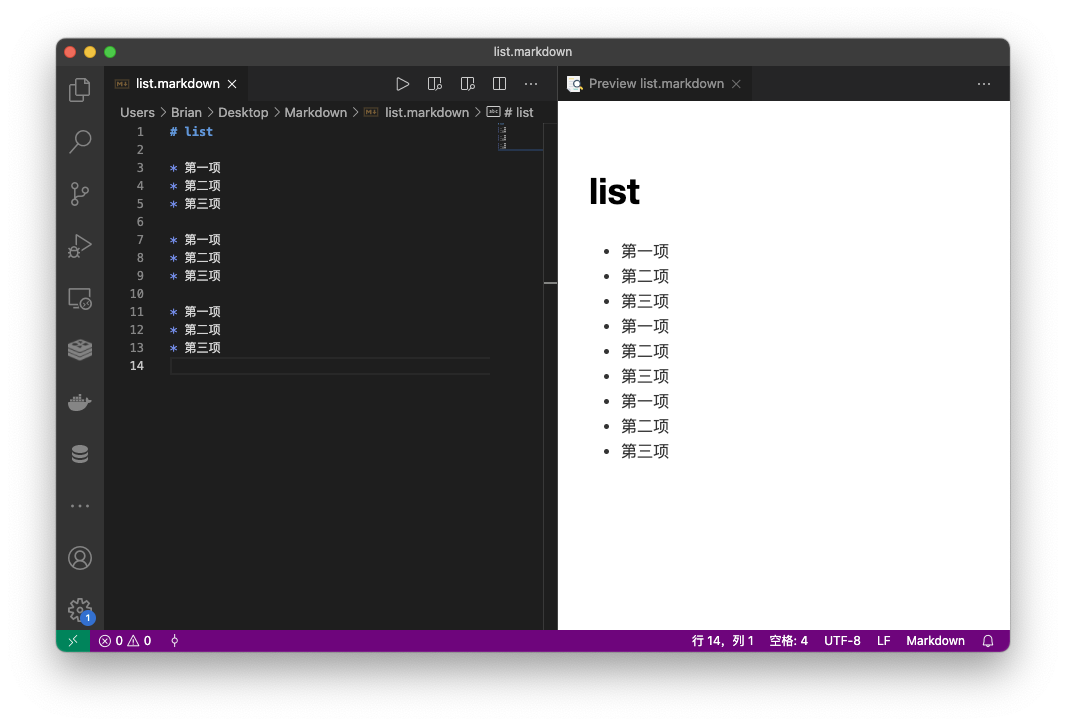
Ordered List
Ordered lists are represented by numbers followed by a period, for example:
1. First item
2. Second item
3. Third item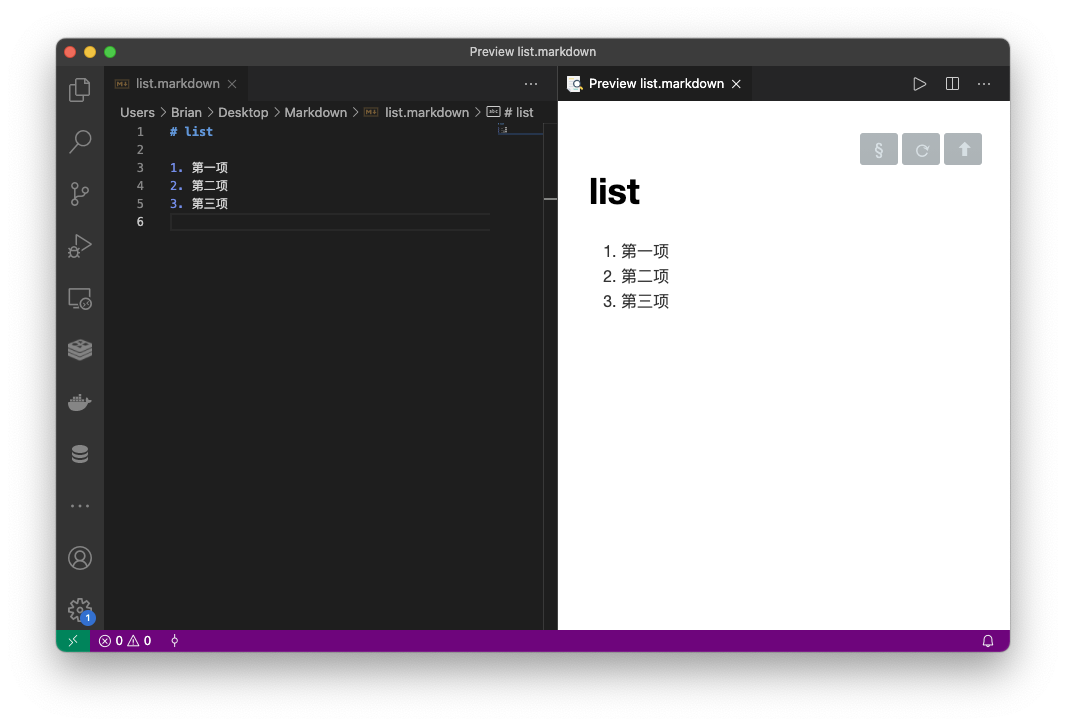
Nested Lists
To nest lists, simply add four spaces before the items in the sublist:
1. First item:
    - First nested element of the first item
    - Second nested element of the first item
2. Second item:
    - First nested element of the second item
    - Second nested element of the second item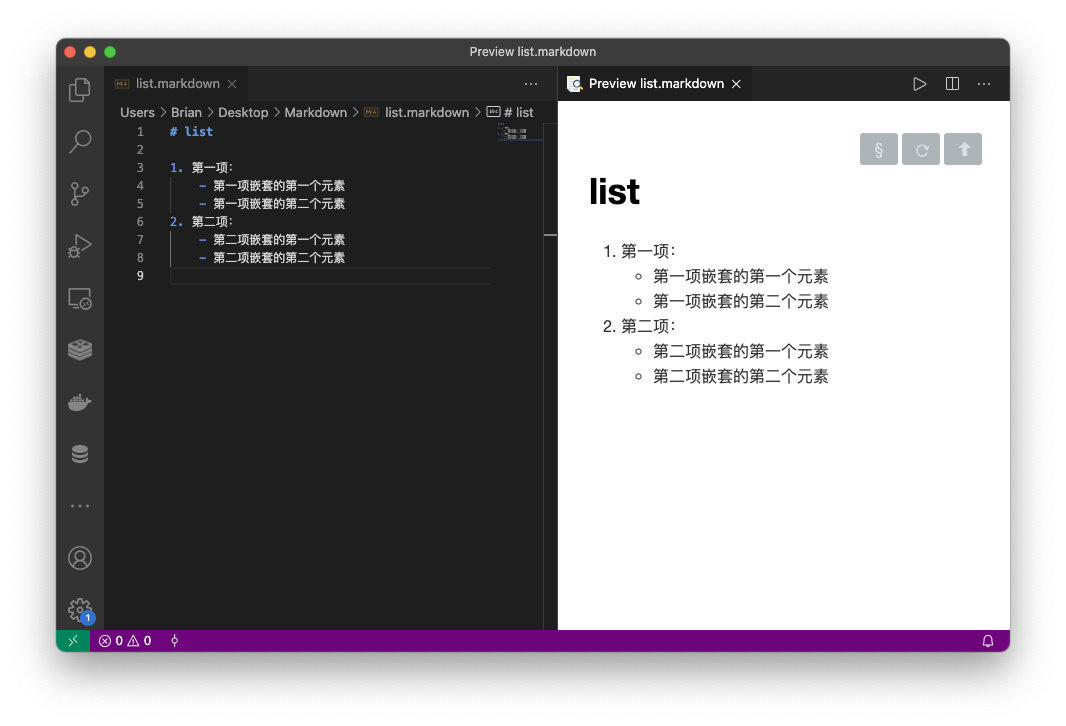
Blockquotes
Markdown blockquotes use the > marker at the beginning of a paragraph, followed by a space:
>Hi, this is xxxbrian.
>Brian's Blog
>等青春轻飘的烟雾把少年的欢乐袅袅曳去,之后,我们就能取得一切值得吸取的东西。 ——普希金
In addition, blockquotes can be nested. One > symbol is the outermost level, two > symbols are the first level of nesting, and so on:
> Outer level
> > First nested level
> > > Second nested level
Using Lists in Blockquotes
> A list inside a blockquote
> 1. First item
> 2. Second item
> + First item
> + Second item
> + Third item
Using Blockquotes in Lists
+ First item
    > Brian's Blog
    > Hi, this is xxxbrian.
+ Second item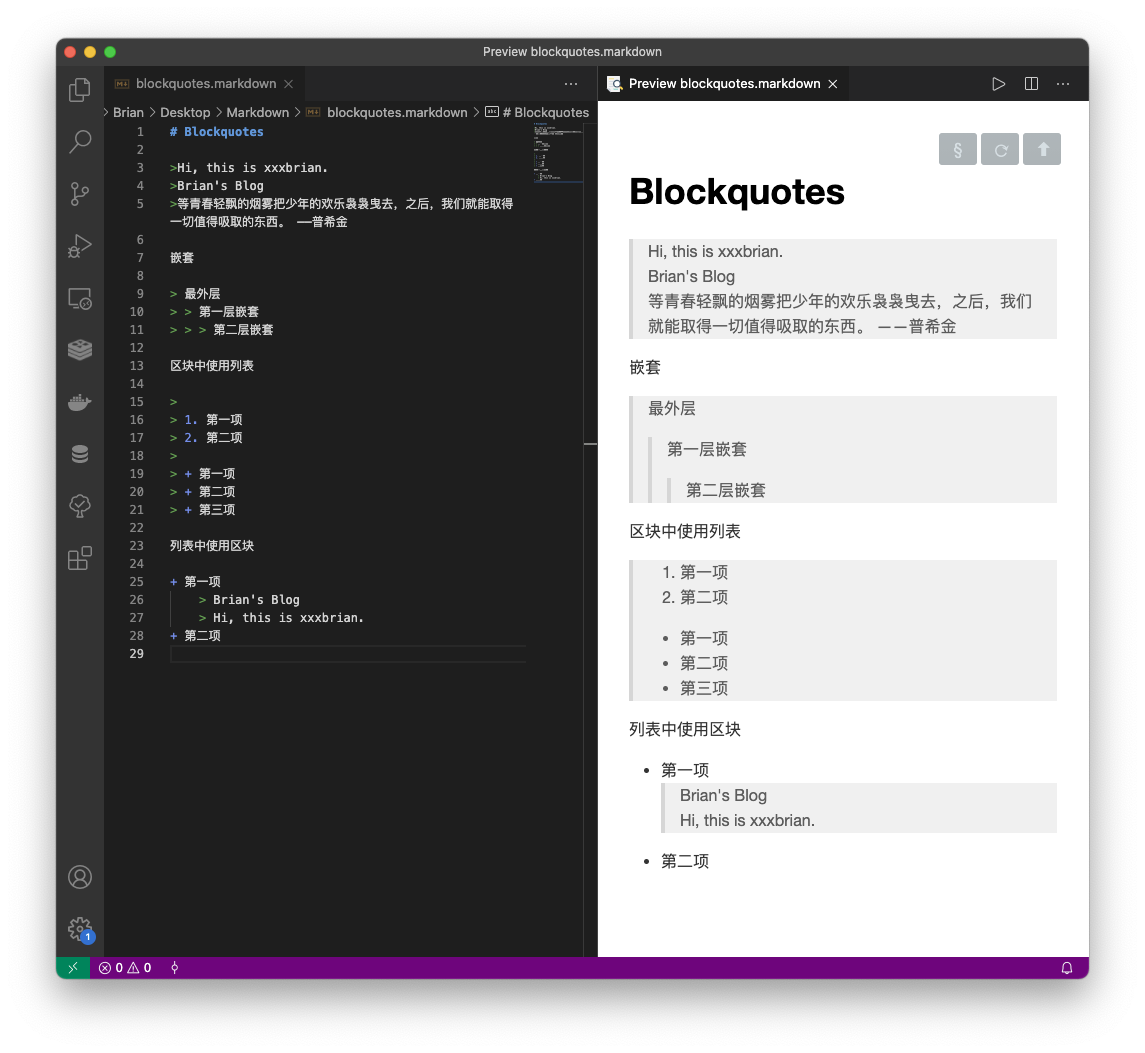
Code
Wrap a function name or code fragment in backticks `, for example `code`. To display the function name printf(), write:
`printf()` functionCode Blocks
Indent a code block with four spaces or one tab.
$(document).ready(function () {
    alert('RUNOOB');
});
The result is displayed as follows:
$(document).ready(function () {
    alert('RUNOOB');
});
You can also use ``` around a code block, with an optional language identifier:
$(document).ready(function () {
    alert('RUNOOB');
});The result is displayed as follows:
$(document).ready(function () {
alert('RUNOOB');
});Links
Links are used as follows:
[Link text](link_url)

Or

<link_url>
For example:
This is a link [Brian's Blog](https://xxxbrian.me)This is a link Brian's Blog
Using a Link Address Directly
Link <https://xxxbrian.me>Link <https://xxxbrian.me>
Advanced Links
Reference-style links let you define a URL separately, usually at the end of the document:
This link uses 1 as its reference label [Google][1]
This link uses Brian's Blog as its reference label [xxxbrian][xxxbrian]

[1]: http://www.google.com/
[xxxbrian]: https://xxxbrian.me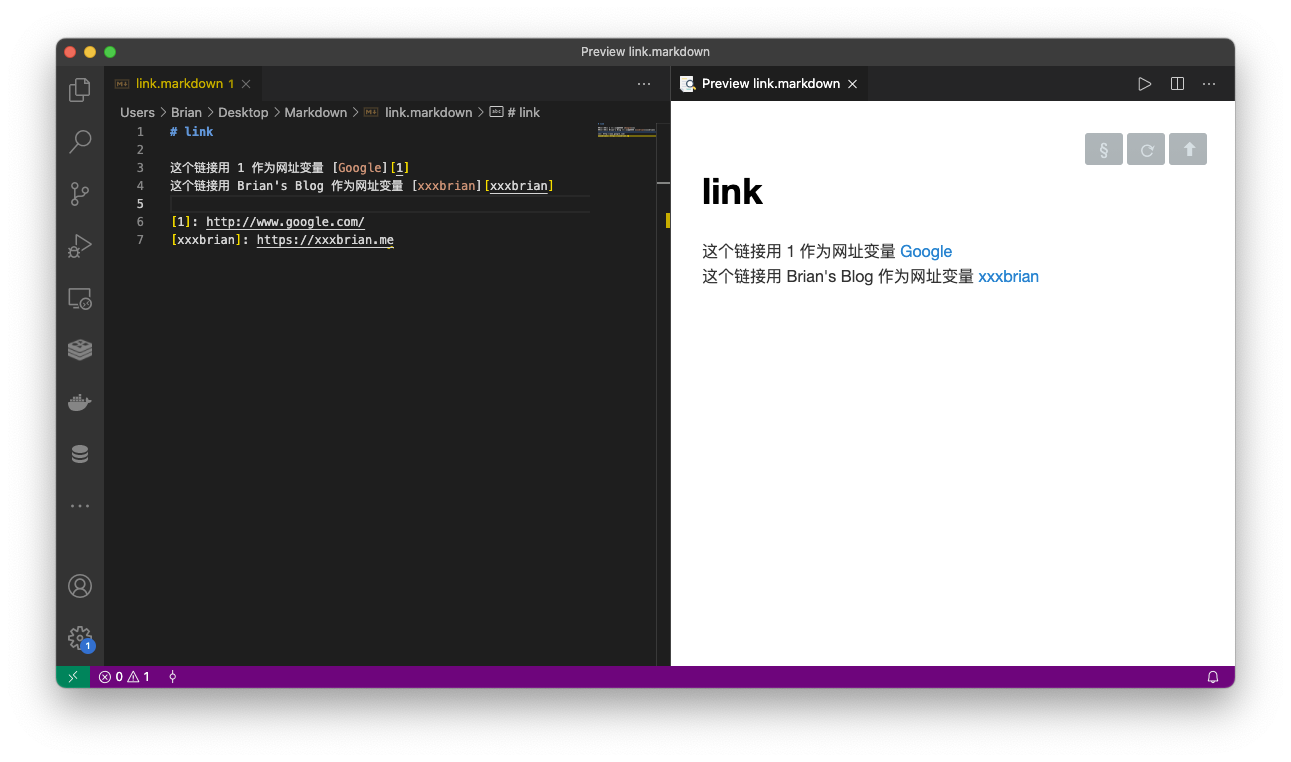
Images
The Markdown image syntax is as follows:

- Start with an exclamation mark !
- Follow it with square brackets containing the image's alt text.
- Then use parentheses containing the image URL and, optionally, a quoted 'title'.
Usage example:
Tables
To create a table in Markdown, use | to separate different cells, and use - to separate the header from other rows.
|  Header   | Header  |
|  ----  | ----  |
| Cell  | Cell |
| Cell  | Cell |
Table Alignment
- -: Align content and header cells to the right.
- :- Align content and header cells to the left.
- :-: Align content and header cells in the center.
| Left-aligned | Right-aligned | Centered |
| :-----| ----: | :----: |
| Cell | Cell | Cell |
| Cell | Cell | Cell |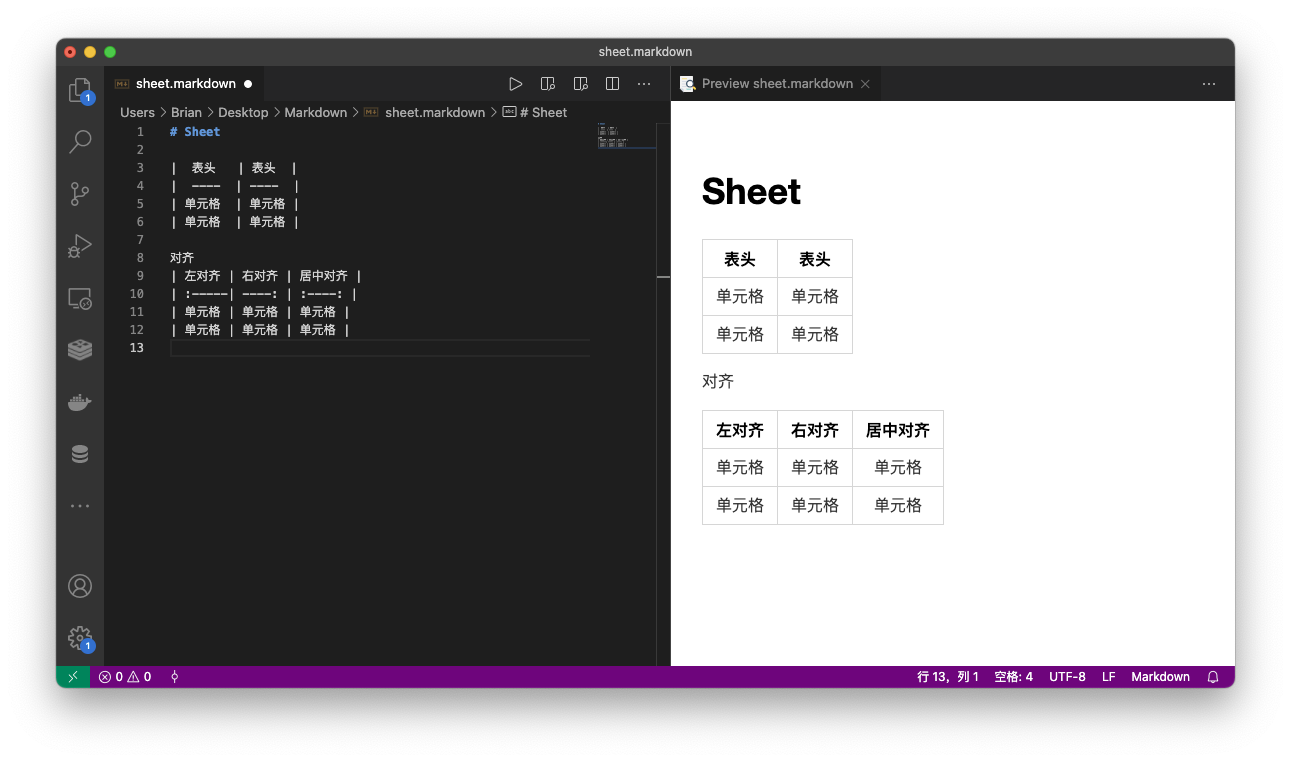
Escaping Special Characters
Markdown uses many special symbols to represent specific meanings. If you need to display a specific symbol, you must use an escape character. Markdown uses a backslash to escape special characters:
**Bold text**
\*\* Display literal asterisks \*\*
Markdown supports adding a backslash before the following symbols to help insert ordinary symbols:
\   Backslash
`   Backtick
*   Asterisk
_   Underscore
{}  Curly braces
[]  Square brackets
()  Parentheses
#   Hash sign
+   Plus sign
-   Minus sign
.   Period
!   Exclamation mark